Overview
Tokens first, then components, then screens
Most design systems break in the same place: a colour or spacing value gets hard-coded once, then copied a hundred times. I built this system to work the other way round. Every decision lives in one place and flows down into components and screens.
151Variables in 5 collections
14Component sets
60Colour tokens across 6 scales
Foundations
One source of truth
Everything starts with variables. Primitives hold the raw values, like brand/500 = #366FED. Mapped tokens give them a job, like Action/primary/default or Text/secondary. Components only ever use the mapped tokens, so changing the brand colour or adding a dark mode means editing one layer, not every component.
Collections+
Color Primitives62
Color Mapped42
Layout/Sizing22
Typography Primitives22
Responsive3
NameValue
Brand
brand/50FAFBFF
brand/100EFF4FE
brand/200C1D3F9
brand/3009AB7F6
brand/4006792F1
brand/500366FED
brand/600225AD6
brand/7001B4AAF
brand/800163A89
brand/90014347D
Colour
Six scales of 10 steps each: neutral, brand, and green, orange, blue and red for feedback states like success, warning, info and error.
Type, radius and elevation
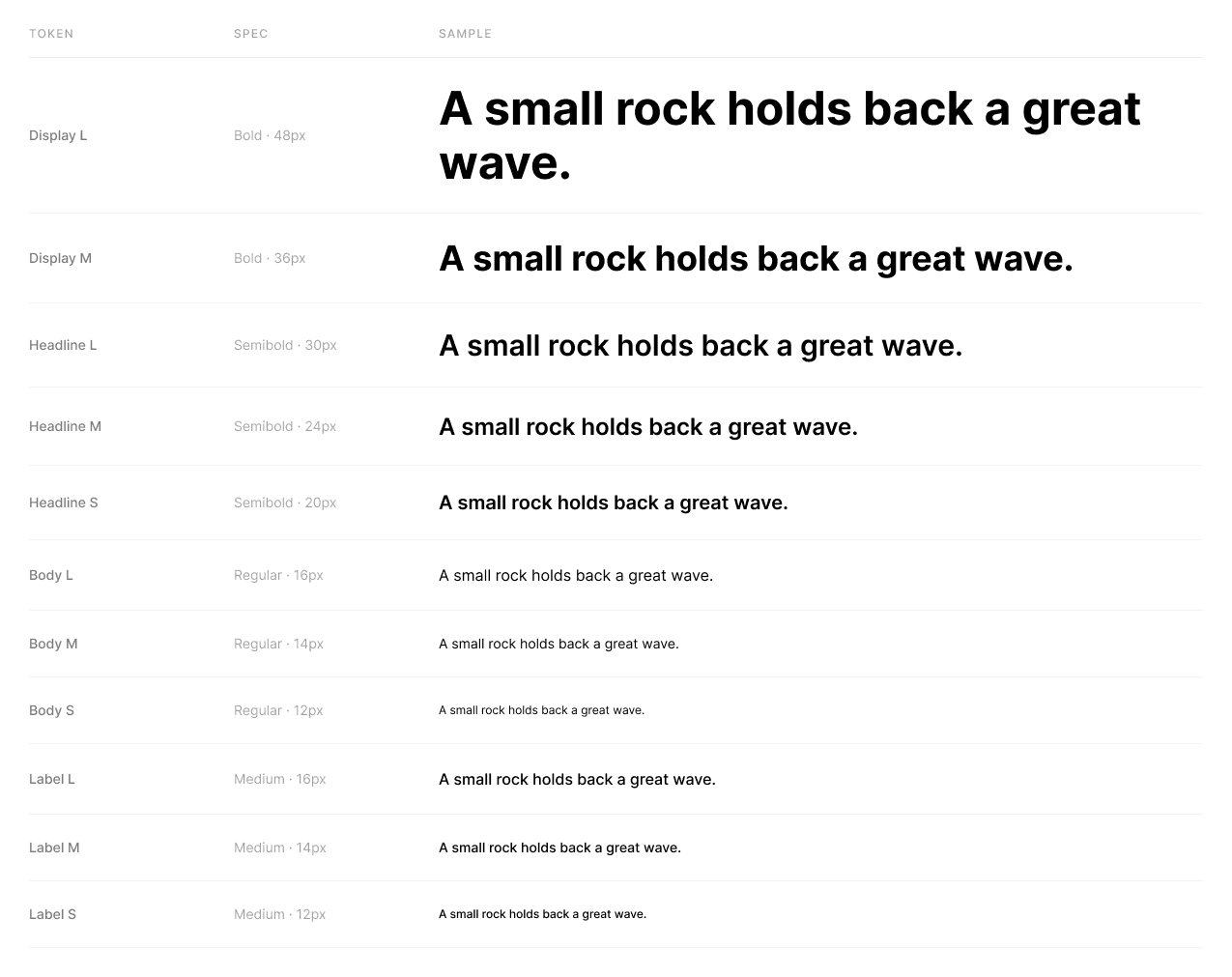
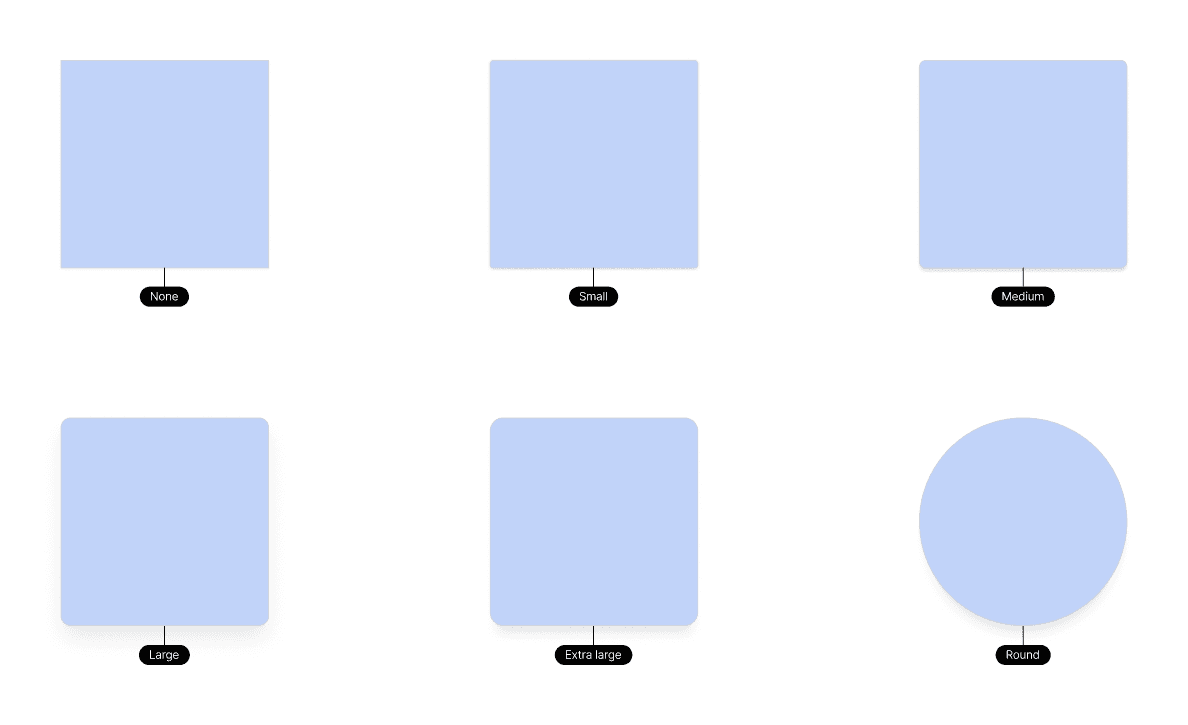
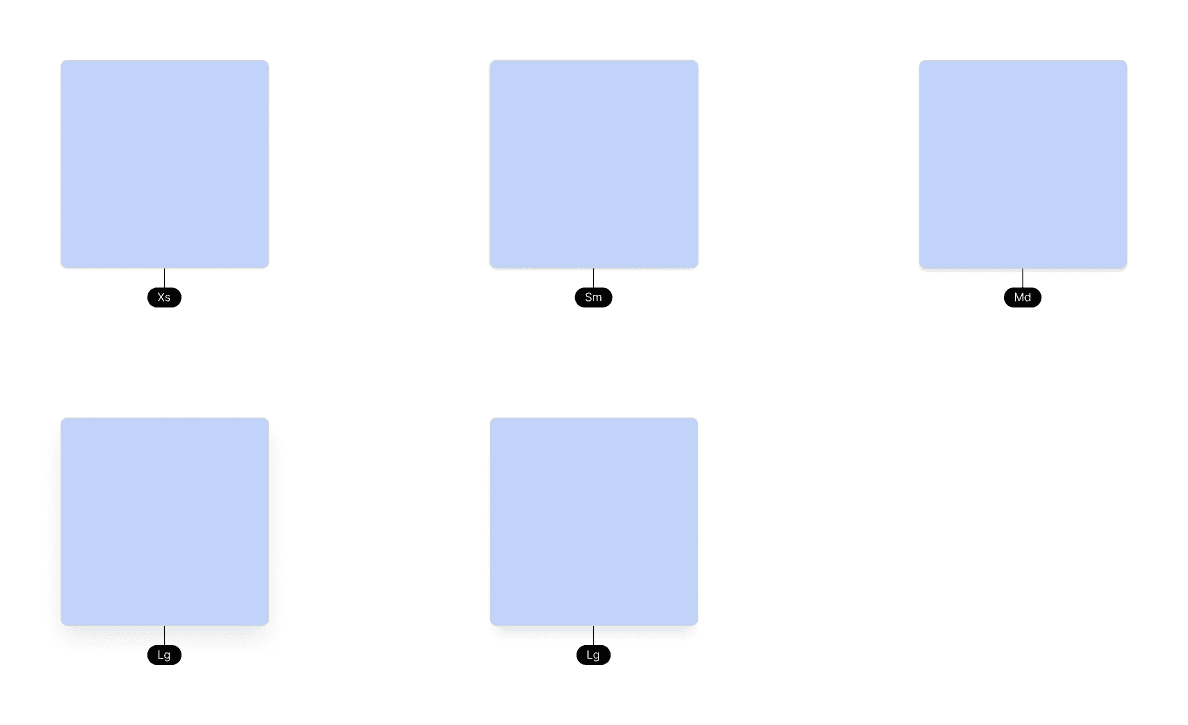
An 11-step type scale in Inter, from Display to Label, plus shared tokens for corner radius and shadows so every card, button and menu feels like part of the same family.
Components
Every state, designed up front
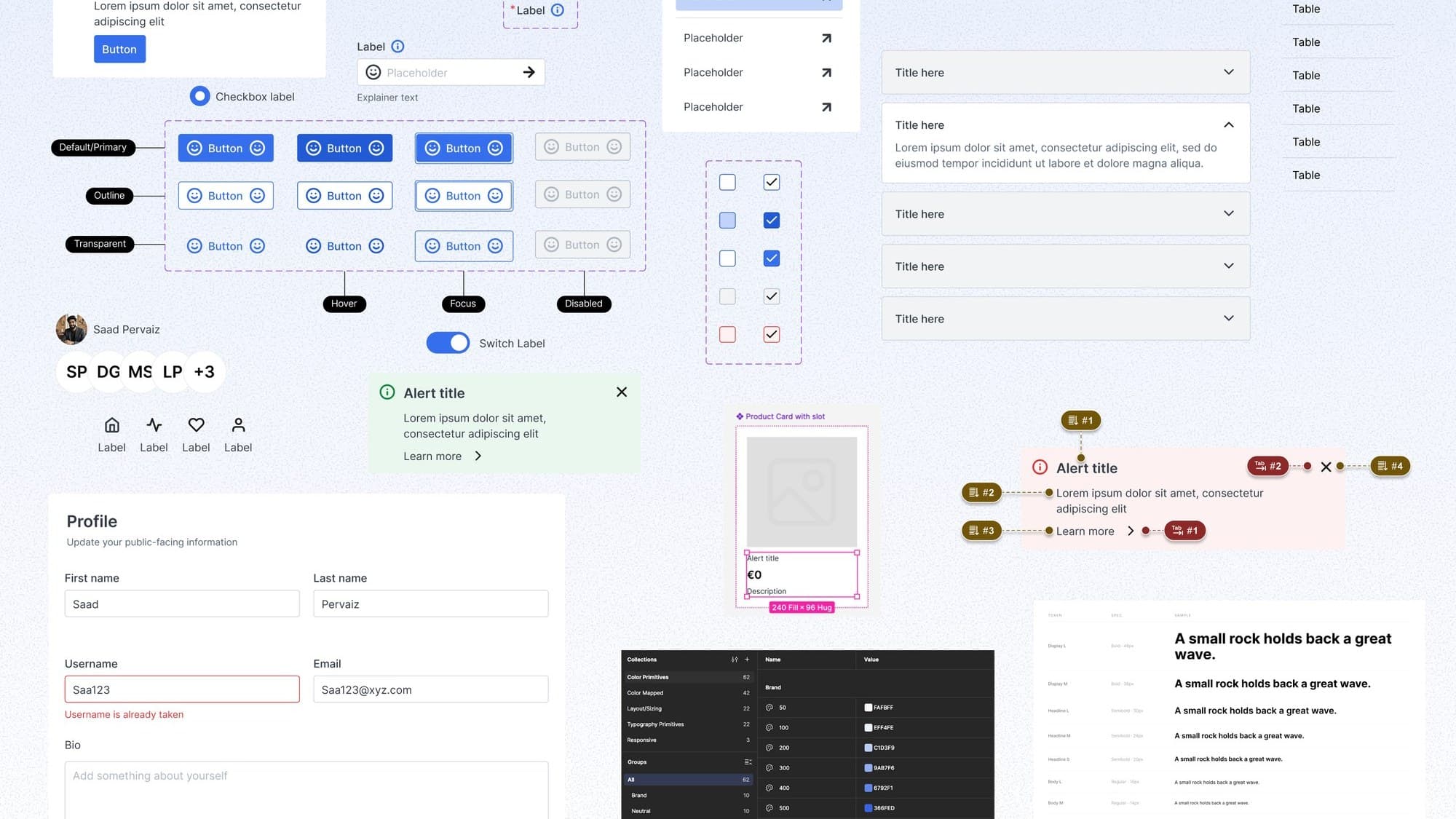
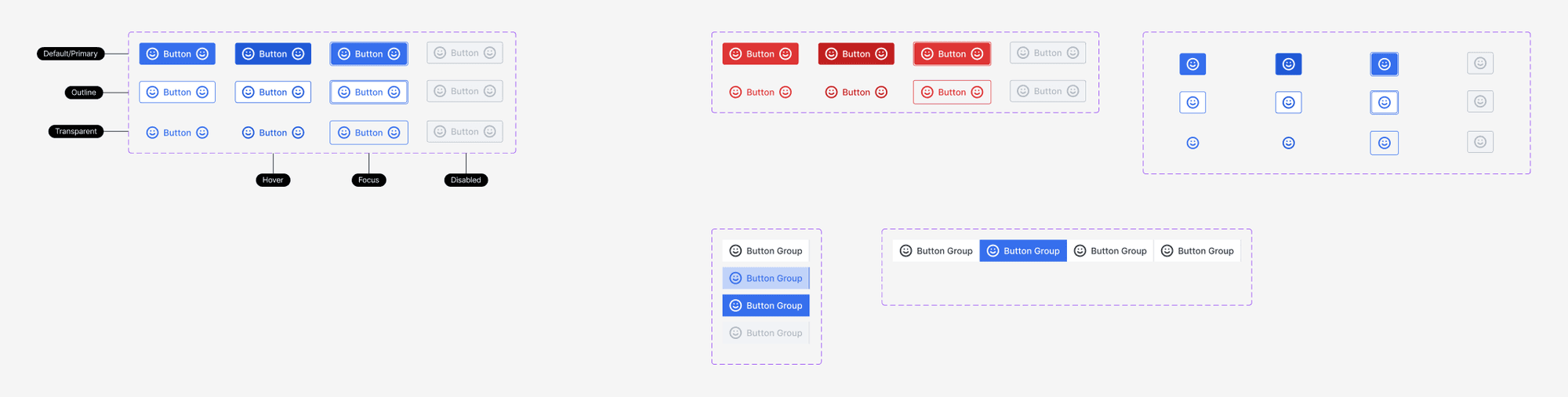
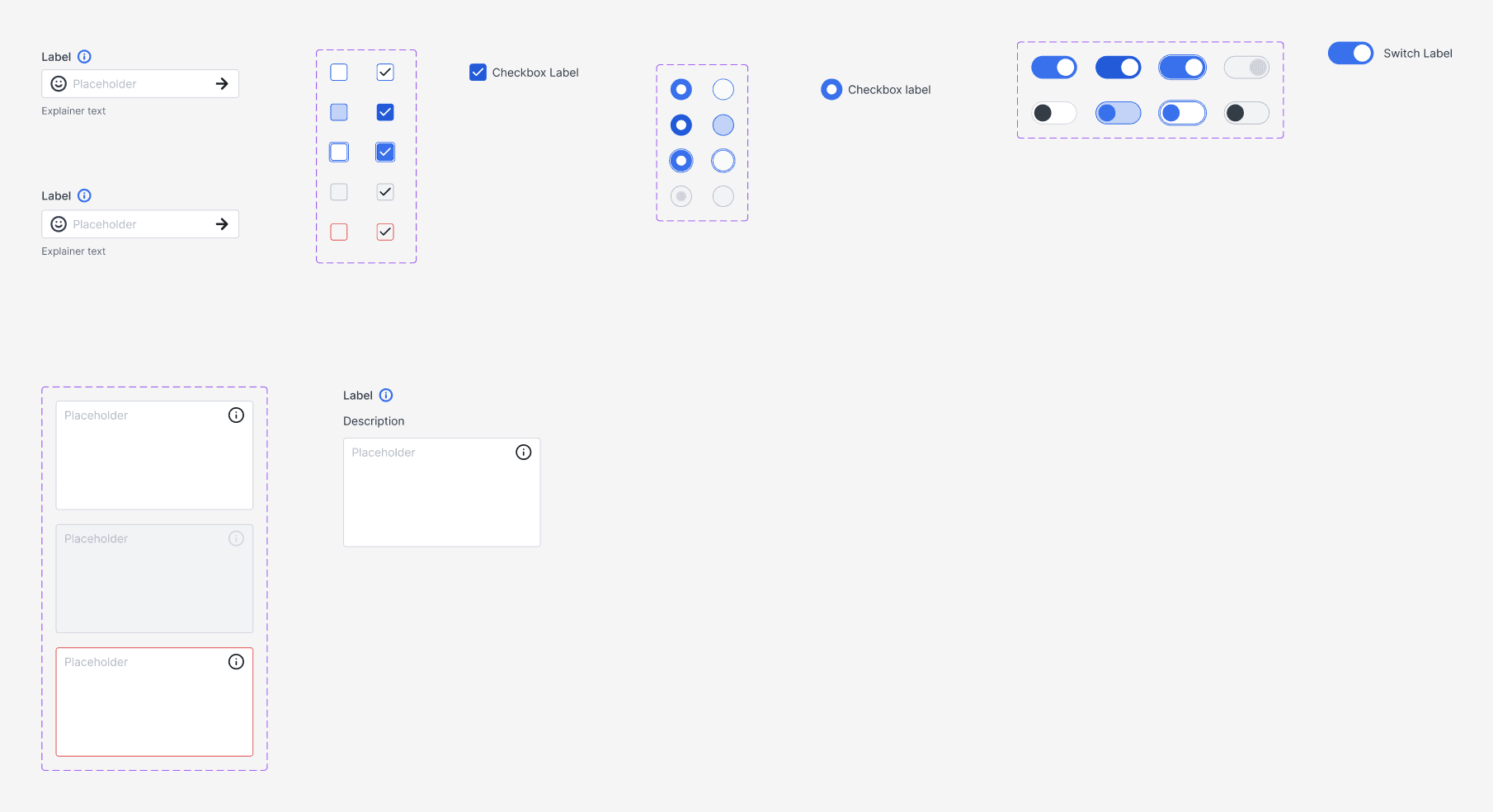
14 component sets, each built with variants and properties instead of separate copies: buttons, icon buttons, button groups, inputs, checkboxes, radios, switches, text areas, menus, navigation, tags, alerts, accordions, avatars, cards and tables.
Each one covers the states real products need, so nobody has to invent a disabled or error look later.
Accessible by default
Accessibility is part of every component, not an afterthought: visible focus states, a label on every field, error messages that don't rely on colour alone, and annotated reading and keyboard focus order for screen reader and keyboard users.
In context
From parts to real screens
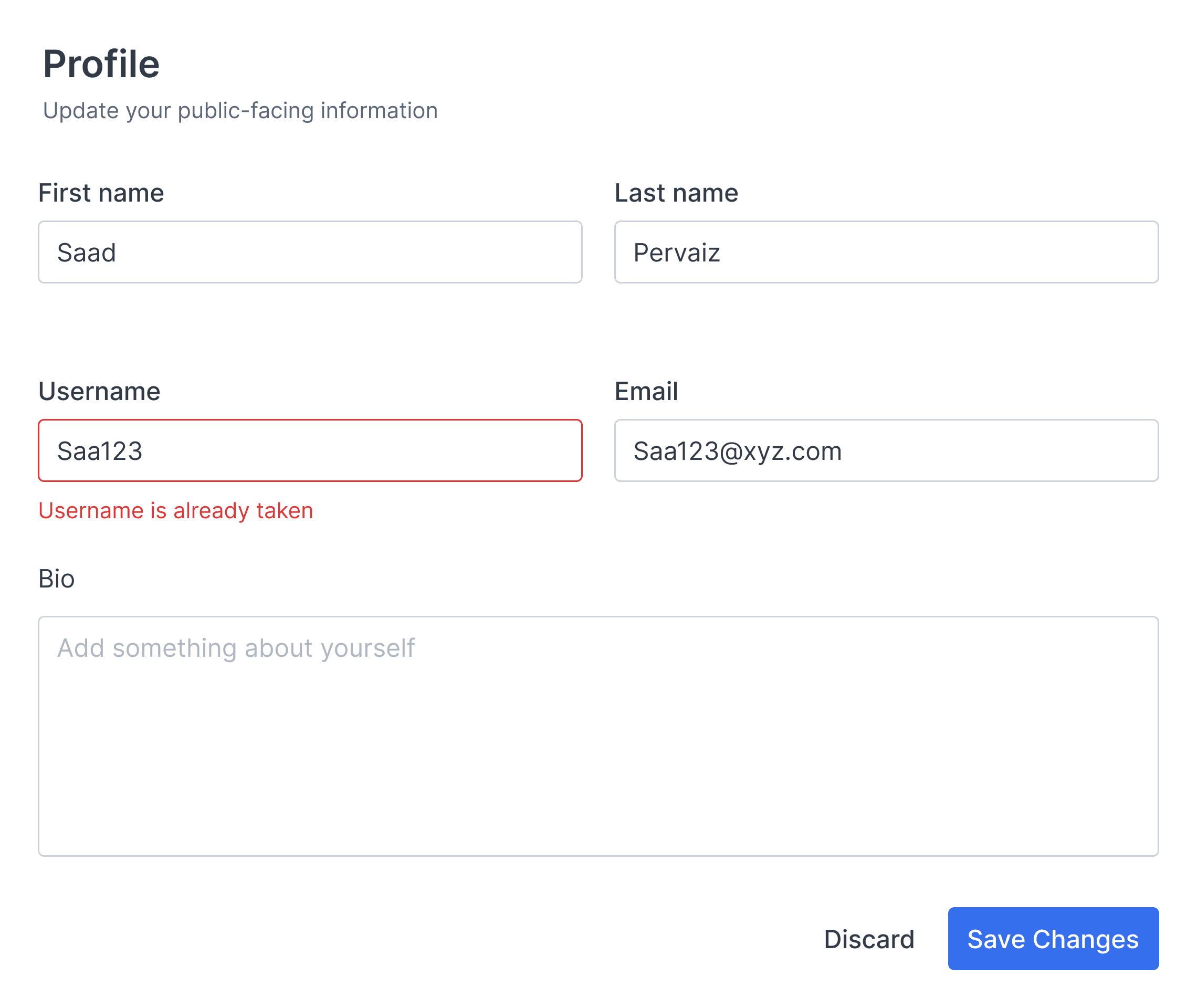
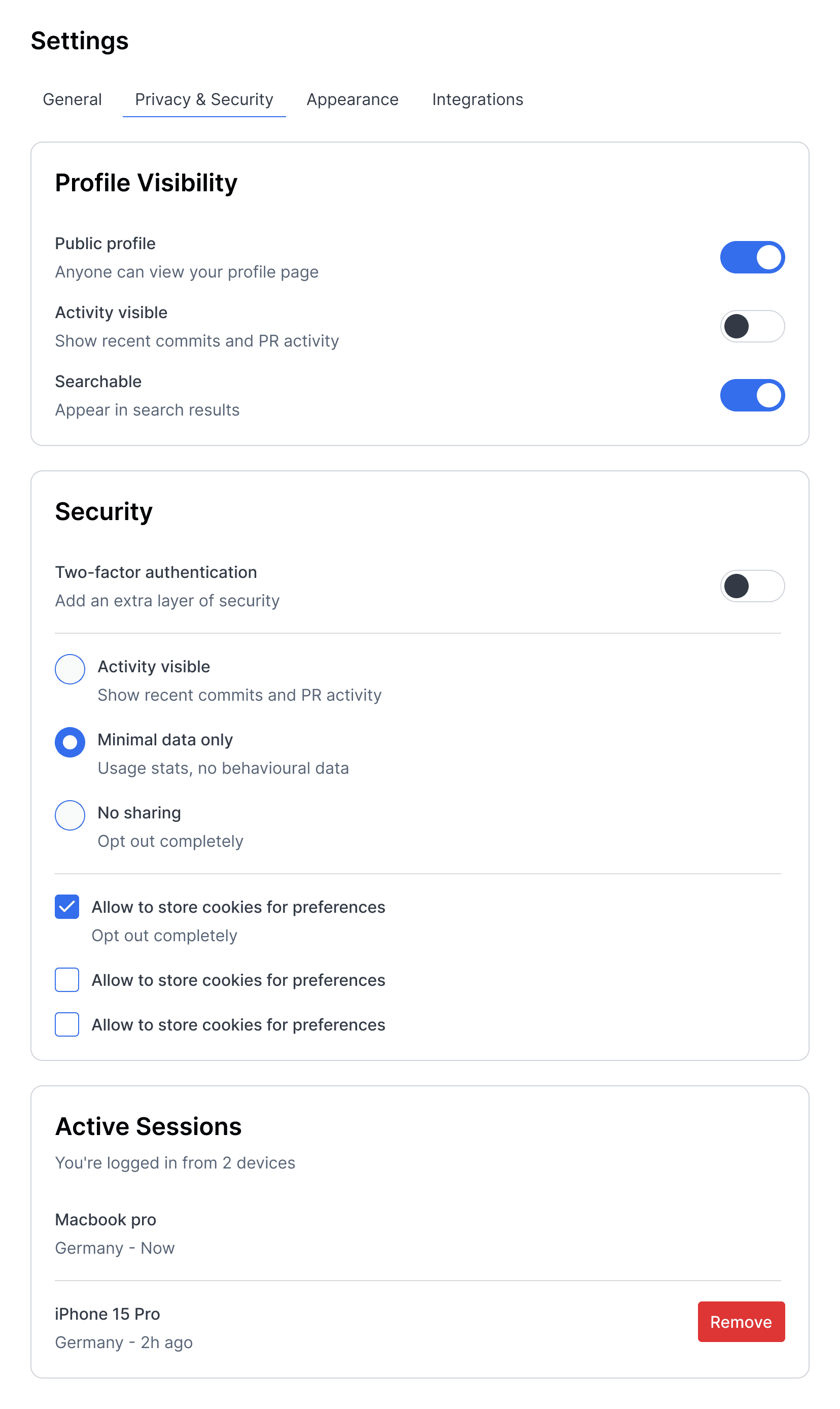
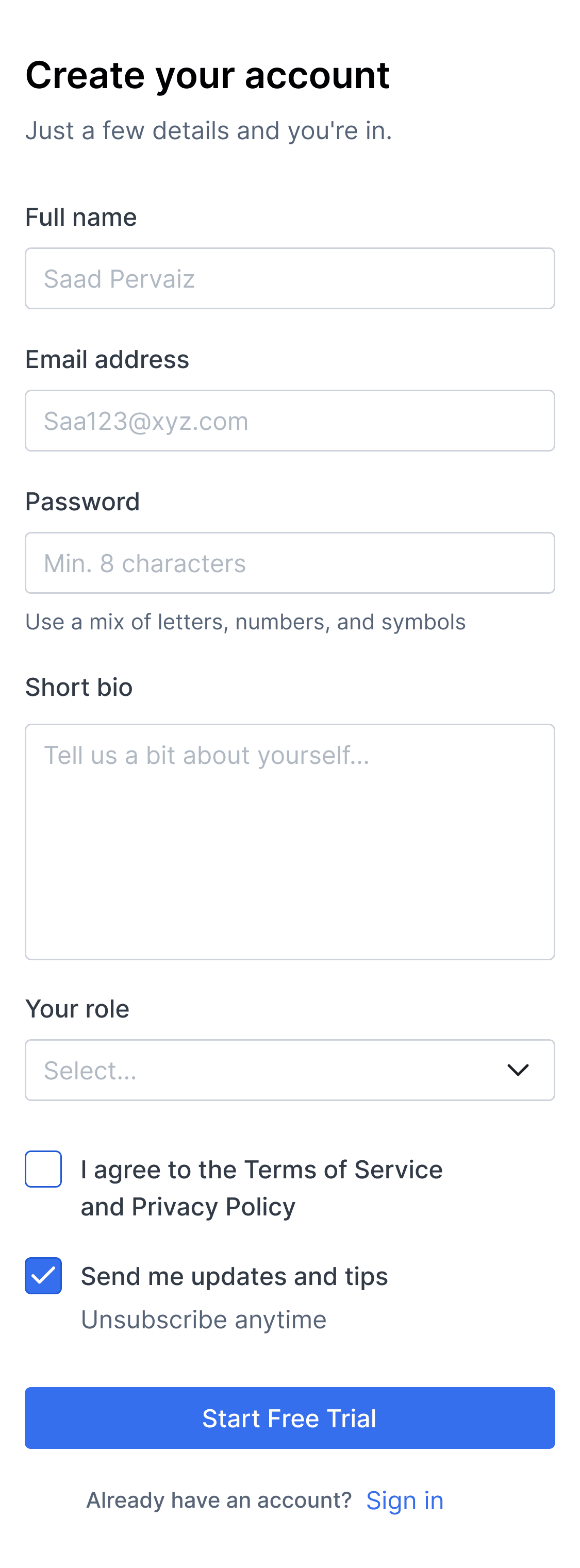
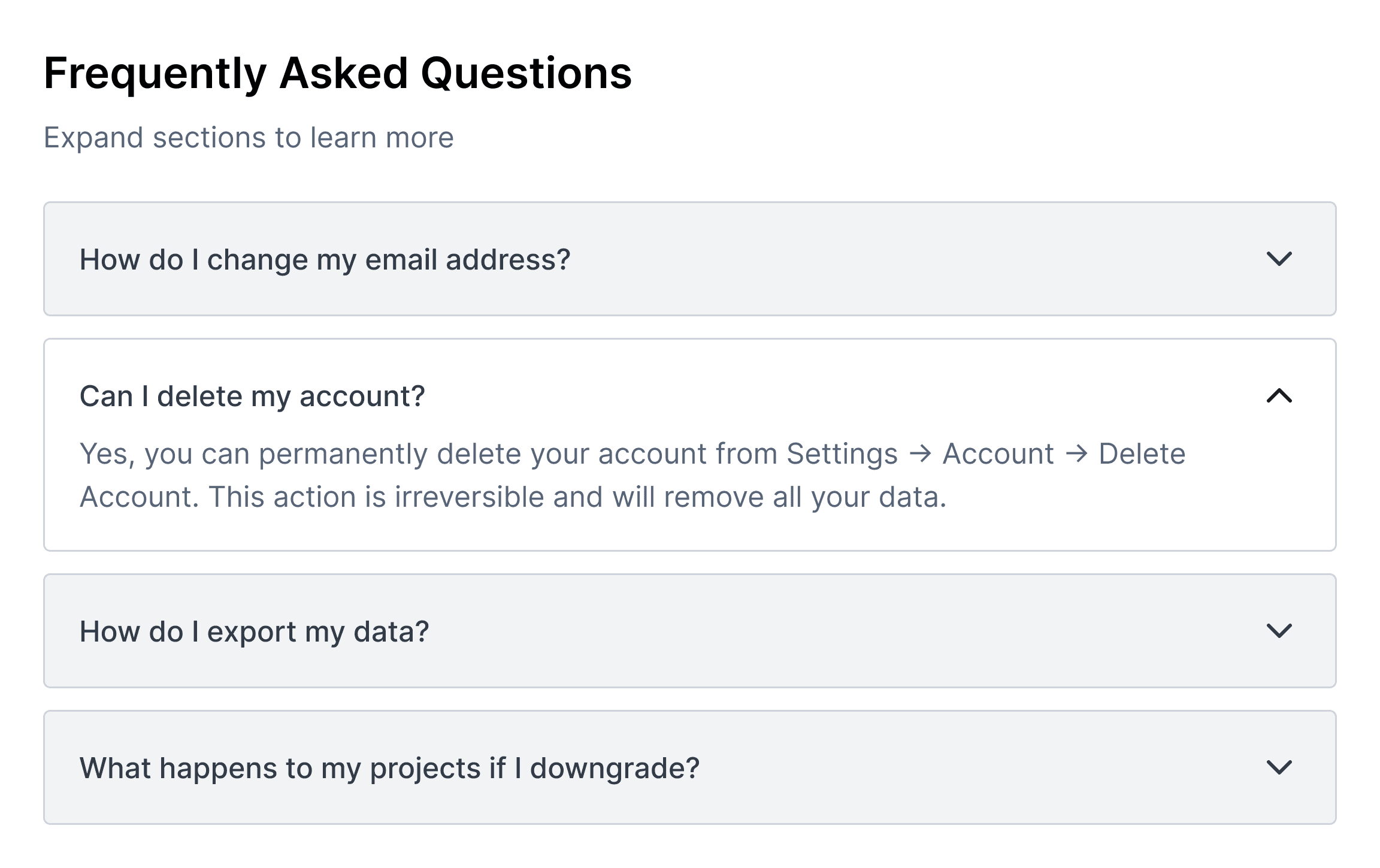
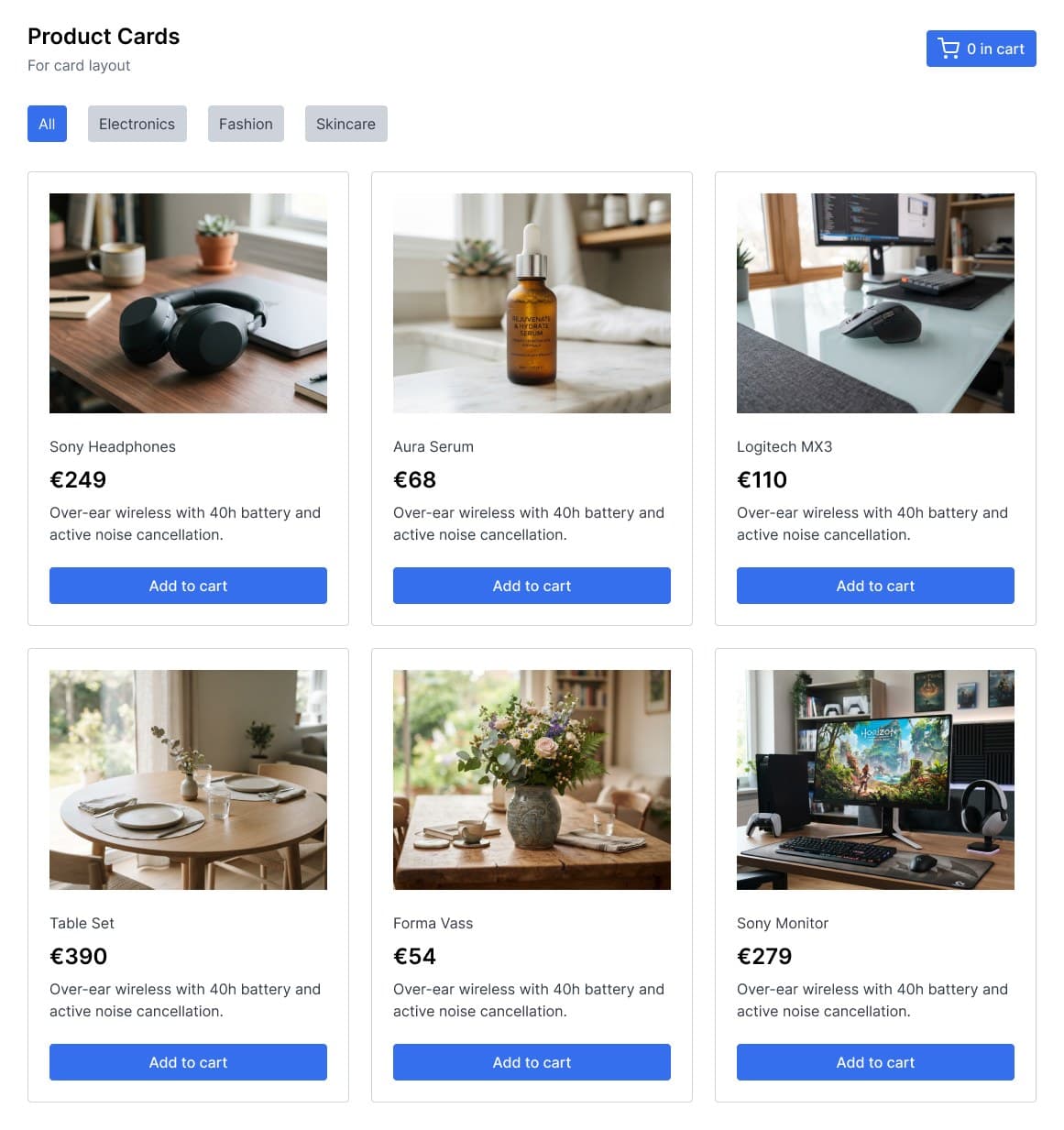
The real test is putting components together. Every screen below is built only from system parts: fields, toggles, accordions, cards and a consistent button hierarchy. No one-off styles needed.
Why it scales
What makes it scale
- 01
Change once, update everywhere
Components read from mapped tokens, so a new brand colour, theme or spacing change ripples through the whole system automatically.
- 02
No surprises in edge cases
Hover, focus, disabled and error states exist for every component before a screen ever needs them.
- 03
Easy to hand off
Clear naming, usage notes on every page and accessibility annotations mean developers can build it without a meeting.
- 04
Fast to build with
New screens come together from existing parts, as the example screens show, instead of being drawn from scratch.